How do I use the Lane-Keeping system in my Ford?
The Lane-Keeping* system uses a forward-facing camera to monitor lane markings and can alert you if your vehicle begins to drift out of its lane.
The system includes Lane-Keeping Alert and Lane-Keeping Aid. Some vehicles also have Driver Alert, which can warn you after repeated lane drifts.
- Lane-Keeping Aid: Applies steering torque to help guide your vehicle toward the centre of the lane.
- Lane-Keeping Alert: Warns you with steering wheel vibrations that simulate driving over a rumble strip.
- Driver Alert: Displays warnings in the message centre if it detects repeated lane drifts, reminding you to pull over and take a break.
Turning the Lane-Keeping System Off and On
To turn the Lane-Keeping system on or off, press the button at the end of the left-hand turn signal stalk.
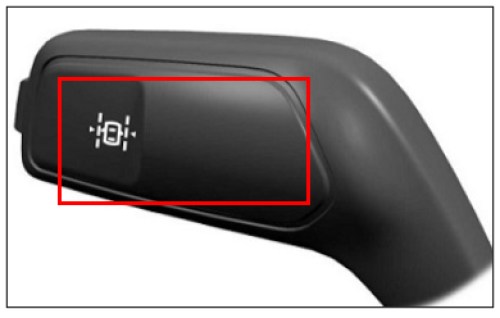
Note: The on or off setting is saved until you change it, unless the system detects a MyKey. If a MyKey is detected, the system defaults to on and the mode defaults to Alert.
To learn more about using the Lane-Keeping system, watch the following video.
Lane-Keeping System Settings
Select a section below to learn more about the optional Lane-Keeping system settings.
Note: The system saves your most recent selection for each setting. You do not need to readjust the settings each time you turn the system on.
Mode
This setting lets you choose which Lane-Keeping features to use.
- Alert Only: Provides a steering wheel vibration when the system detects an unintended lane departure.
- Aid Only: Provides steering assistance to help guide your vehicle toward the centre of the lane when the system detects an unintended lane departure.
- Both: Provides steering assistance and a steering wheel vibration, as described below.
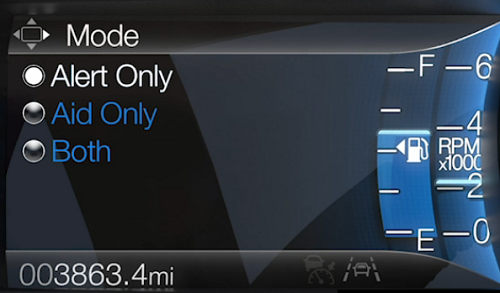
In Both mode, the system first provides steering assistance to help guide your vehicle toward the centre of the lane. If your vehicle continues to drift out of the lane, the system provides a steering wheel vibration.
If your vehicle remains to one side of the lane after the steering assistance and then drifts out of the lane again, the system provides a steering wheel vibration.
Note: The Alert and Aid diagrams illustrate general coverage areas. They do not show exact system boundaries.
Intensity
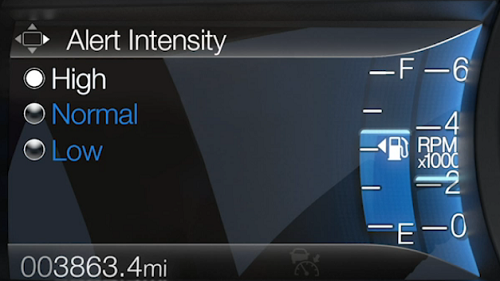
You can adjust the intensity using the steering wheel controls and the message centre. This setting changes the strength of the steering wheel vibration in Alert Only and Both modes. It does not affect Aid Only mode.
Vehicle and lane-marking icons
When the system is on and you are driving, a vehicle icon and lane markings appear on the information display.
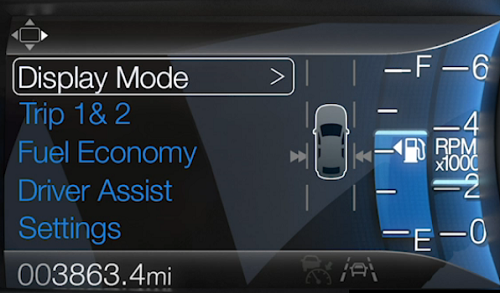
The colour of the lane markings changes to indicate the system’s status:
- Grey: The system is temporarily unable to provide a warning or steering assistance on the indicated side.
White: The system is ready to provide a warning or steering assistance on the indicated side.
Note: If your vehicle has Lane Centering Assist and the system is active, the lane markings appear green instead of white.
- Yellow: The system is providing, or has just provided, a Lane-Keeping Aid intervention.
- Red: The system is providing, or has just provided, a Lane-Keeping Alert warning.
The system may temporarily deactivate in situations such as:
- Braking quickly
- Accelerating quickly
- Using the turn signal
- Making an evasive steering maneuver
- Driving too close to the lane markings
Notes:
- The system operates above 40 mph (64 km/h).
- The system can operate when the camera detects at least one lane marking.
- If you select Aid Only or Both and the system detects no steering activity for a short time, it alerts you to place your hands on the steering wheel. A light grip or touch may be detected as hands-off driving.
- The system may not work if the camera is blocked or if the windshield is dirty or damaged.
Additional Information
What is Ford BlueCruise?
What is the Driver Alert system?
How do I use MyKey with my Ford?
*Driver-assist features are supplemental. They do not replace the driver’s attention, judgment, or responsibility to control the vehicle. They are not a substitute for safe driving. See your Owner’s Manual for details and limitations.